Best Screen Privacy Chrome Extension — 5 Options for Screen Sharing (2026)
The best screen privacy Chrome extension depends on where your risk actually is. If you screen share Slack, Discord, Microsoft Teams, or WhatsApp Web often, a platform-specific blur extension is faster and more precise than a generic one. For everything else — CRMs, dashboards, admin panels — a general-purpose page blur extension is the right pick. This guide compares 5 options head to head.
A screen privacy Chrome extension is a browser add-on that hides sensitive content on a web page before or during a screen share, screen recording, or live session. Options range from Slack-specific tools like Privacy Blur for Slack to generic blur extensions that work on any website.
Accidentally sharing the wrong thing on a call is one of those mistakes that feels small for one second and huge the next. Maybe it is a Slack DM, a private channel name, a salary note, a customer account balance, or an internal tab you forgot was still open. The more remote work becomes normal, the more this happens to managers, sales teams, recruiters, customer success reps, founders, and anyone else who lives in browser tabs all day.
That is why screen-sharing privacy extensions are so useful. They let you hide sensitive information before the meeting starts instead of relying on last-second tab juggling. Some are built for a specific app. Others work on almost any website. The best one for you depends on where your privacy risk actually shows up.
In this guide, I compared the best Chrome extensions for screen sharing privacy for everyday work use, not technical edge cases. If you mostly share Slack, one tool clearly stands out. If you jump between lots of sites, a generic blur tool may fit better.
Related Amrita Labs privacy extensions: Slack · Discord · Microsoft Teams · WhatsApp Web.
What is a screen privacy Chrome extension?
A screen privacy extension is a browser tool that blurs, hides, or masks parts of a webpage so private information does not appear during a screen share, meeting, or recording. Modern options work per-app (Slack, Discord, Teams, WhatsApp Web) or across any website. The best ones combine hover-to-reveal, keyboard shortcuts, and persistent rules so you can present with confidence without disabling access to your own tools.
How to add a privacy screen for Chrome (quick setup)
- Choose the extension that matches your risk — Slack-heavy workflow: pick a Slack-specific blur tool. Mixed workflow: pick a generic page blur. Multi-platform team chat: install one privacy blur per platform (Slack, Discord, Teams, WhatsApp Web).
- Install from the Chrome Web Store and pin the extension icon to your toolbar.
- Configure blur zones before the call — messages, channel names, DMs, avatars, media previews.
- Test with a scratch meeting — start a Google Meet with only yourself to see exactly what viewers would see.
- Use a keyboard shortcut (like
Alt+Shift+B) to toggle blur on/off quickly during live meetings.
Which Chrome extension hides my screen during sharing?
Pick by workflow:
- Slack only — Privacy Blur for Slack (9 blur zones, hover reveal, free forever)
- Discord DMs and servers — Privacy Blur for Discord
- Microsoft Teams meetings and chats — Privacy Blur for Teams
- WhatsApp Web — Privacy Blur for WhatsApp
- Any site (CRMs, dashboards, spreadsheets, email) — a generic page blur extension covered later in this guide
What to look for in a screen-sharing privacy extension
Before you install the first blur tool you see, focus on five practical criteria:
- App-specific vs. generic — A Slack-specific tool can feel much faster inside Slack, while a generic tool is better if you present from many different sites.
- Ease of use — In a real meeting, you want one click or one shortcut, not a complicated setup flow.
- Hover-to-reveal — This is underrated. It lets you keep information hidden from your audience while still quickly checking something yourself.
- Persistence — If you share the same tools repeatedly, saved blur rules can save a lot of time.
- Price — Free is great, but paid can still be worth it if you screen share constantly and need repeatable protection.
A good rule of thumb: choose the most specific tool that matches your daily workflow. If most of your screen-sharing mistakes happen in Slack, a generic extension can feel slower than something built exactly for Slack. But if you move between dashboards, spreadsheets, admin panels, and web apps all week, flexibility matters more.
1. Privacy Blur for Slack — Best for Slack-heavy workflows
Chrome Web Store · Product page — Free forever, Pro $3/month
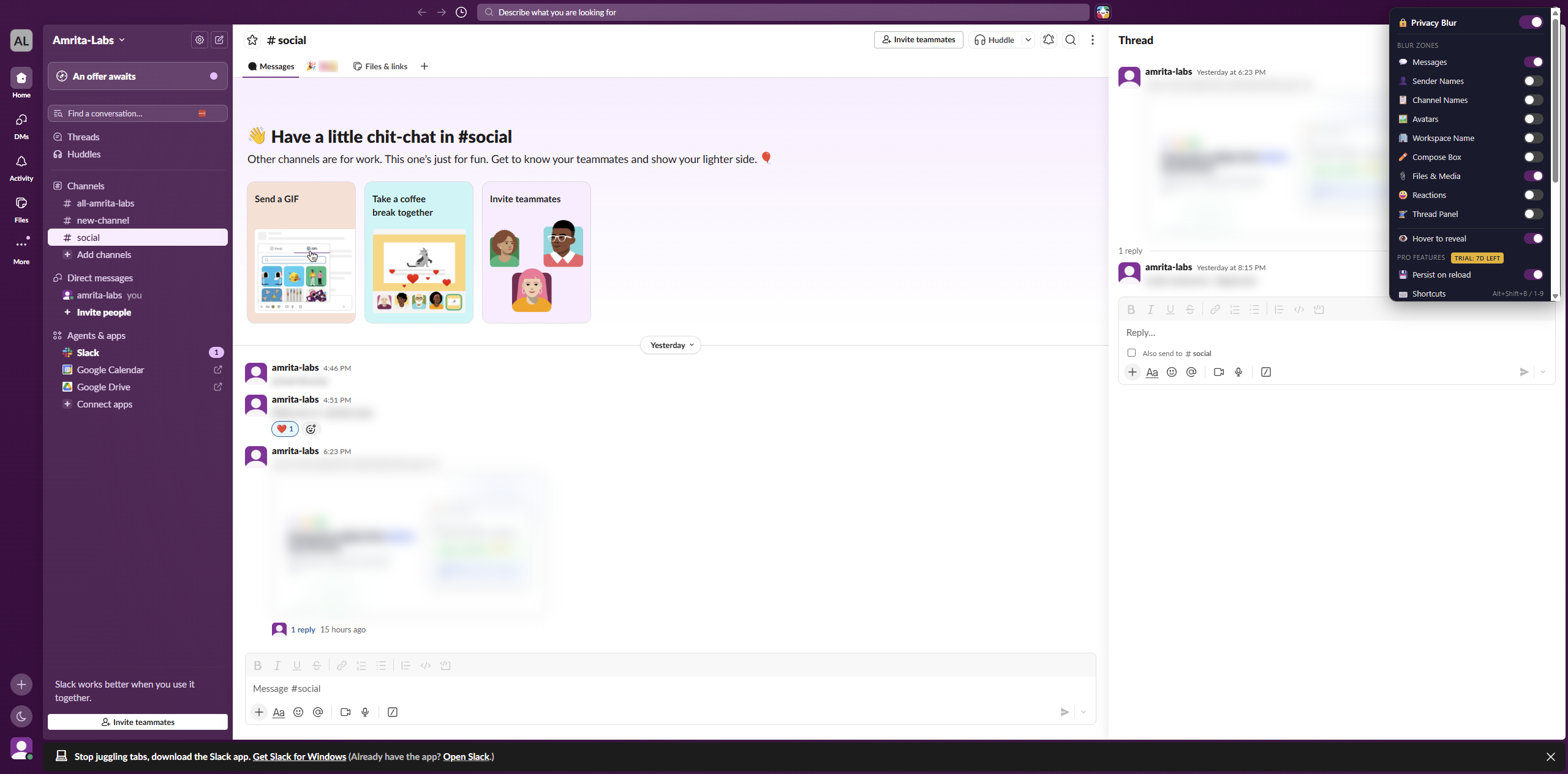
Privacy Blur for Slack is the strongest pick if your privacy risk is concentrated in Slack. It gives you 9 independent blur zones — messages, channel names, DMs, avatars, media previews, activity indicators, member list, compose box, and images — so you can hide exactly what would leak without making Slack unusable.
How it stands out:
- Hover-to-reveal — briefly inspect a blurred message without turning protection off for the room.
- Keyboard shortcut —
Alt+Shift+Btoggles blur instantly before a call. - Client-side only — no telemetry, no data collection, no message content ever leaves your browser.
- Pro features — persistence across reloads, keyword rules (“salary”, “confidential”), and sender rules for $3/month.
Best verdict: If Slack is where sensitive info usually leaks, this is the fastest, cleanest solution. The platform-specific focus means fewer clicks and no accidental over-blur.
Trade-off: Works on Slack Web (app.slack.com) in Chrome only. Slack desktop app is not supported because Chrome extensions cannot run there.
Best for: Managers, recruiters, founders, customer success, and support teams who keep Slack open during live calls.
Price: Free forever. Pro $3/month.
Similar sibling extensions are available for Discord, Microsoft Teams, and WhatsApp Web — same design, different platform.
2. Page Blur — Best free generic option
Chrome Web Store — Free
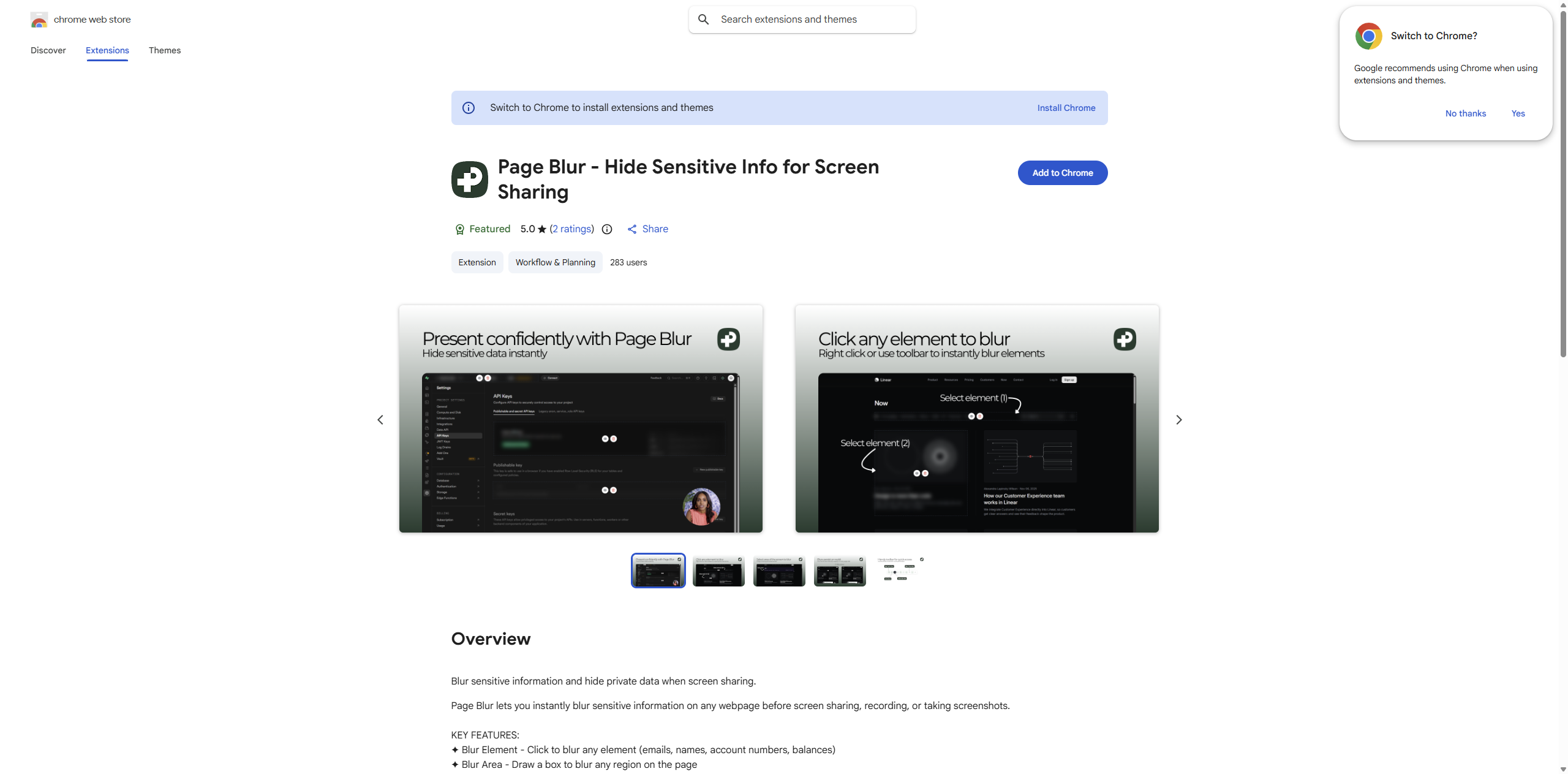
Page Blur is the best generic option on this list because it covers the core privacy jobs most people need without overcomplicating the experience. You can blur any element on a page, hide tab names, keep blur states persistent, adjust blur intensity, and use keyboard shortcuts. Because it works on any website, it fits people who jump between CRMs, email tools, internal dashboards, and browser tabs all day.
Its flexibility is the main reason to choose it over an app-specific product. If you need to hide a customer name on one page, a balance figure on another, and the tab title itself while sharing your whole screen, Page Blur can handle that.
The trade-off is that it stays manual. It is not optimized around one app, so it does not automatically know what is sensitive. You usually need to select the elements yourself every time, which is fine for planned presentations but adds friction when a meeting starts unexpectedly.
Best for: Remote workers who need one free privacy extension across many websites.
Price: Free.
3. Safe Screen Share — Best for one-click “hide everything”
safescreenshare.com — Free
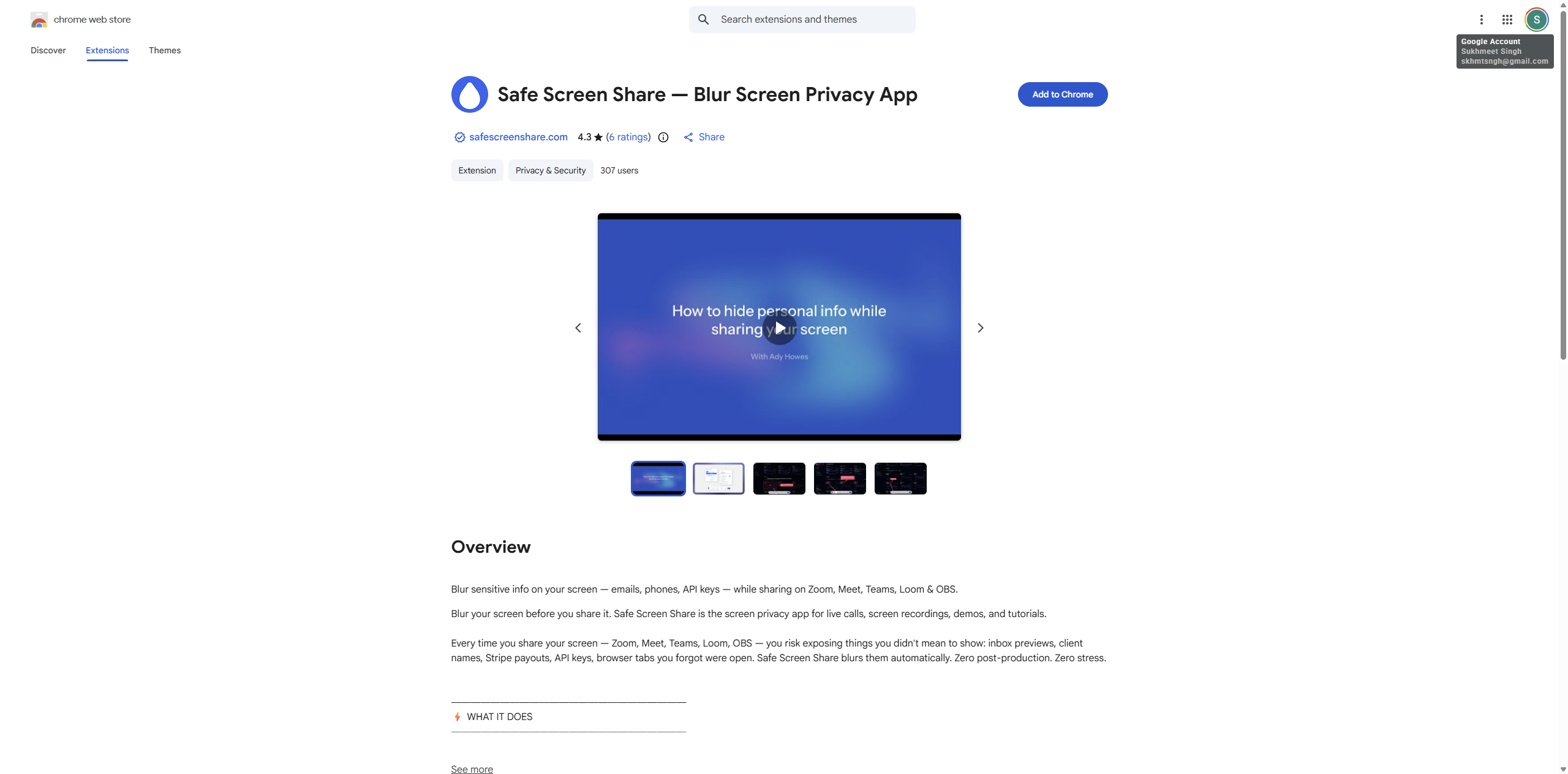
Safe Screen Share takes a different approach: instead of picking individual elements, it hides everything on the page with one click and lets you reveal individual sections when you need them. It is great for people who want the safest possible default state before every call.
The one-click “hide everything” model is appealing because it removes a decision. You never have to remember what to blur. On the other hand, it requires an extra step to reveal what you want to show, which can feel slow during a fast-moving demo.
Best for: Anyone who prefers a maximally safe default.
Price: Free.
4. BlurWeb — Best for tutorials and recordings
blurweb.app — Paid premium after trial/refund window
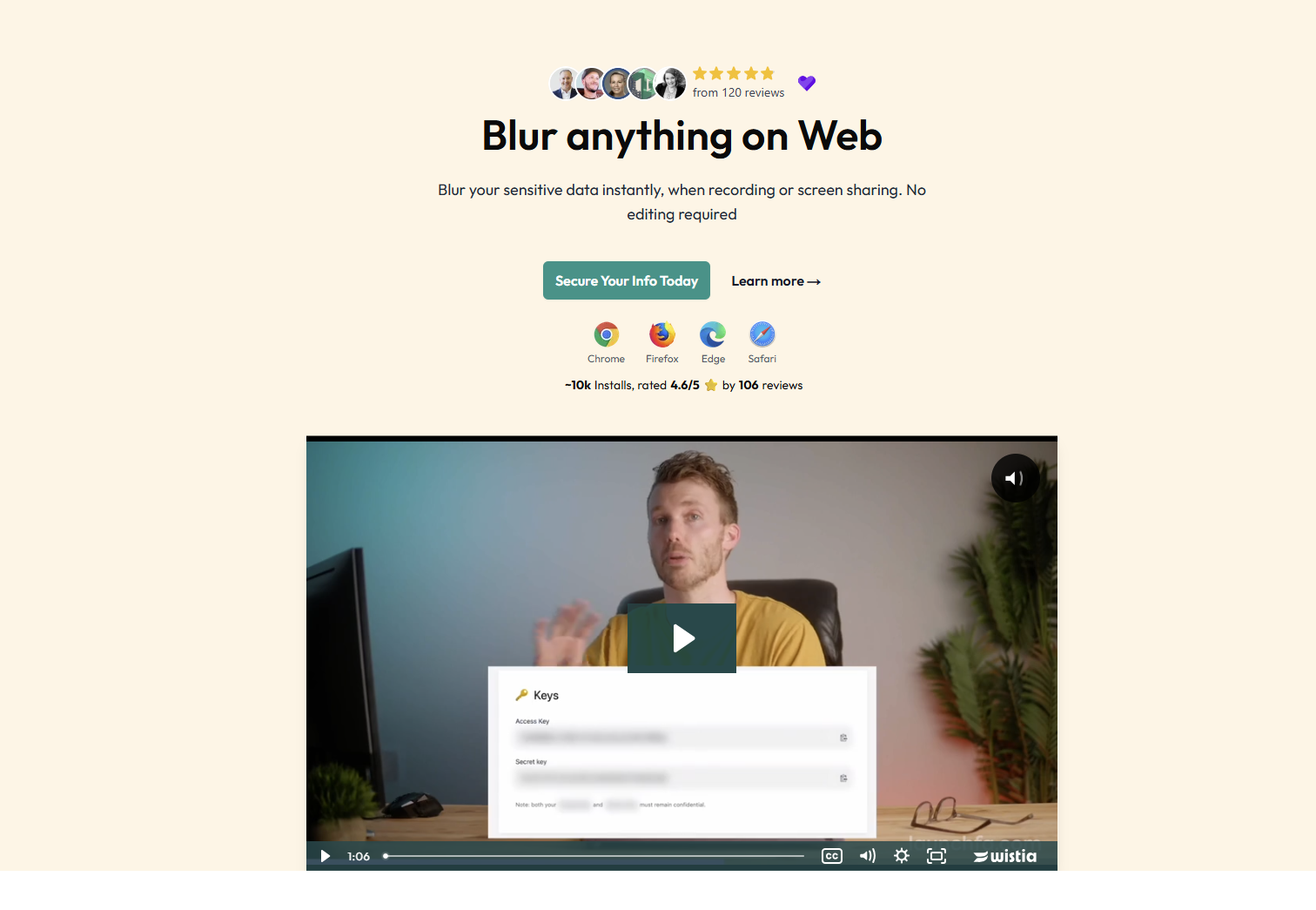
BlurWeb is a strong choice for people who create tutorials, onboarding videos, demos, or livestreams on a repeat basis. It lets you blur any element, draw blur over custom areas, persist blur between sessions, and adjust intensity. That combination makes it useful when you need to clean up the same product walkthrough more than once.
The standout feature is repeatability. If you regularly record the same pages or demo flows, persistent blur saves time because you do not have to rebuild your privacy setup every session. The draw-blur option also helps when what you want to hide is awkwardly placed and does not map neatly to one clickable element.
The main drawback is price and setup complexity. BlurWeb is not the best fit for someone who only occasionally presents in meetings — the manual element selection and configuration take time upfront. It makes more sense when polished recordings or repeat demos are part of your job. Like Page Blur, it is also a general tool, so you still decide manually what to hide before every session.
Best for: Trainers, tutorial creators, sales demo teams, and livestreamers.
Price: Paid premium after the trial/refund window.
5. Obscuro — Best for developers and security teams
GitHub — Free, open source
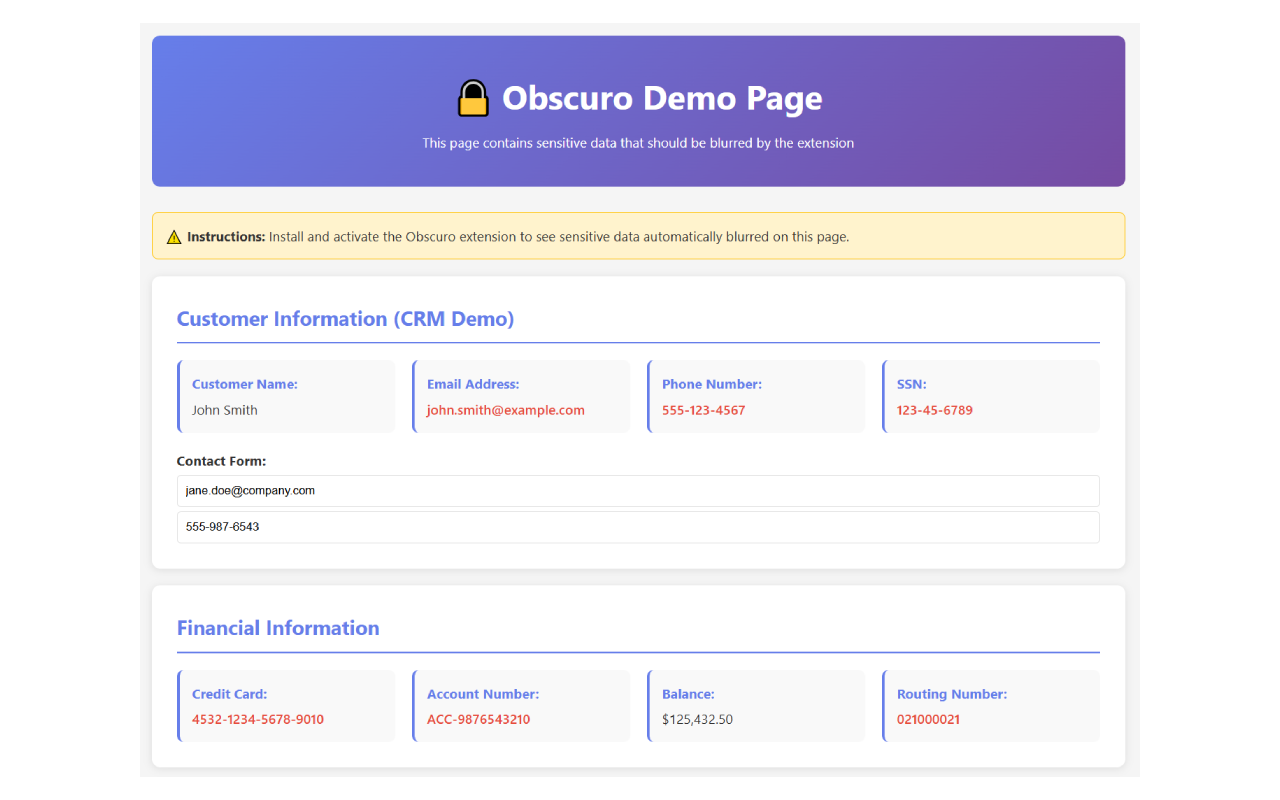
Obscuro is a Chrome extension built by Intezer’s security team. It is open source, minimal, and focused on hiding text content quickly during ad-hoc screen shares. Because the source is public on GitHub, security-conscious teams can audit exactly what the extension does before installing it on work machines.
Obscuro’s main strength is transparency. For teams that require every browser extension to pass a source-code review, open source is often the only path forward. The trade-off is that Obscuro is intentionally simple. You will not find persistence, hover-reveal, keyword rules, or platform-specific optimizations here. It is a focused text-blur tool, not a full privacy suite.
Best for: Developers, security engineers, and teams that require open-source audits before rolling out extensions internally.
Price: Free, open source.
Comparison table
| Extension | Best for | Price | App-specific? | Hover-reveal? |
|---|---|---|---|---|
| Privacy Blur for Slack | Slack users who screen share often | Free forever, Pro $3/mo | Yes — Slack Web only | Yes |
| Page Blur | Free privacy across many websites | Free | No | No |
| Safe Screen Share | Users who want “hide everything” default | Free | No | Optional reveal |
| BlurWeb | Tutorials, recordings, livestreams | Paid premium | No | No |
| Obscuro | Developers and security teams | Free, open source | No | No |
FAQ
What is the best screen privacy Chrome extension for Slack?
For Slack specifically, Privacy Blur for Slack is the strongest choice. It has 9 independent blur zones, hover-to-reveal, and an Alt+Shift+B toggle. It works on Slack Web (app.slack.com) in Chrome and runs 100% client-side with no data collection.
Do any of these extensions work on the Slack desktop app?
No. Chrome extensions cannot run inside standalone desktop apps. For Slack Desktop, Discord Desktop, or Teams Desktop, either switch to the web version before your call, or close the app entirely and rely on window-sharing to control what your audience sees.
Which extension is best for Discord, Microsoft Teams, or WhatsApp Web?
Each has its own platform-specific extension in the Amrita Labs family: Privacy Blur for Discord, Privacy Blur for Microsoft Teams, and Privacy Blur for WhatsApp. Same design principles, different platform.
Can I use one extension to hide everything across all my apps?
Page Blur or BlurWeb work across any website. The trade-off is that you have to configure them manually every time — they do not know Slack from Salesforce. If your risk is spread across many apps, a generic tool is the pragmatic pick. If your risk is concentrated in one app, an app-specific extension is faster and cleaner.
Does hiding content in Chrome hide it in Zoom, Google Meet, and Microsoft Teams too?
Yes. All these extensions apply the blur inside the Chrome page. When you share your screen or a specific Chrome tab in any meeting tool, viewers see whatever Chrome is rendering — including the blur.
Is any of these safe for enterprise use?
Privacy Blur for Slack and Obscuro are the two options with the strongest privacy posture: both run entirely client-side and never transmit content. Obscuro is open source. For enterprise rollouts, review each extension’s manifest permissions and privacy policy before installing on managed devices.
Final take
If Slack is where your private messages, channel names, and internal chatter usually leak into meetings, Privacy Blur for Slack is the strongest fit because it solves that exact problem without making Slack hard to use.
If your screen-sharing risk is spread across lots of sites, Page Blur is the best free all-purpose choice.
If you screen share Discord, Microsoft Teams, or WhatsApp Web often, install the matching sibling extension — Discord, Teams, or WhatsApp — for the same platform-specific precision.
Ready to make Slack safer before your next call? Install Privacy Blur for Slack and keep sensitive Slack content hidden while you share.