Share your screen,
not your secrets.
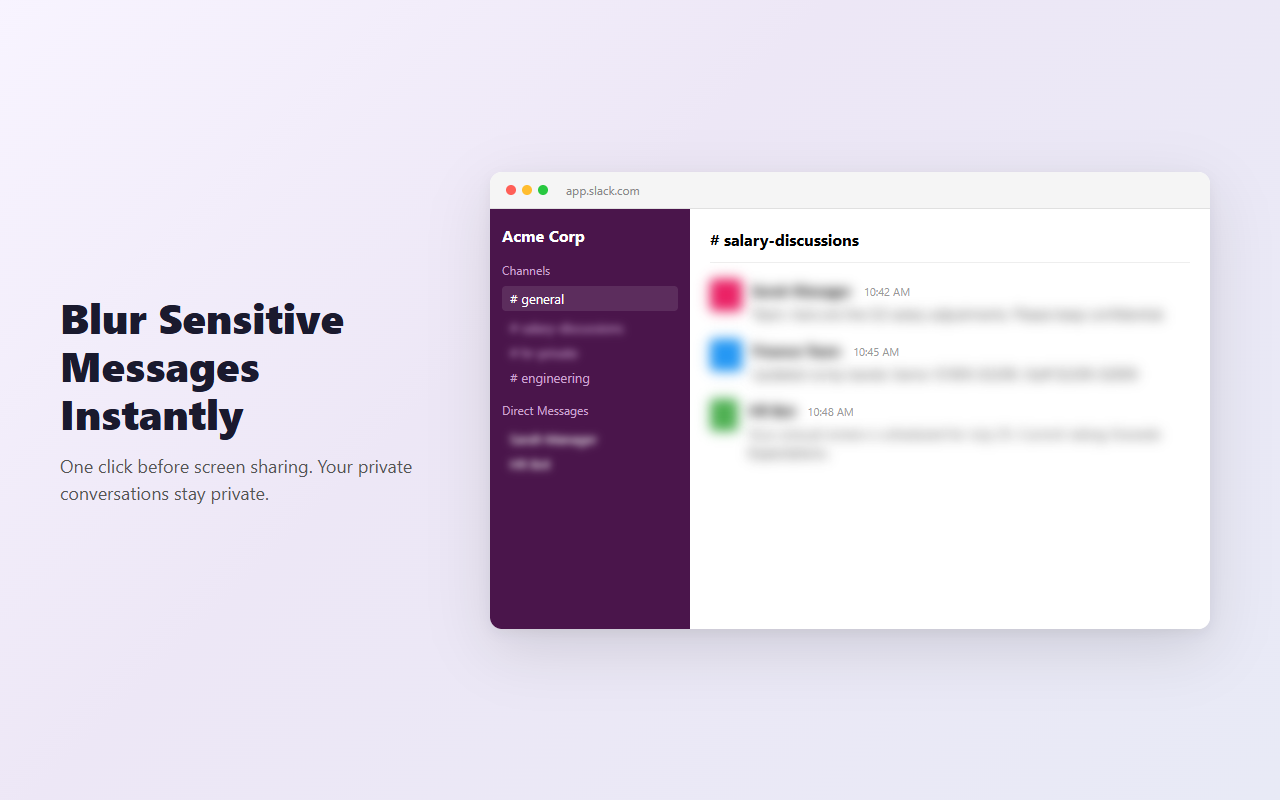
Privacy Blur for Slack hides sensitive messages, names, and channels during screen sharing or video calls. One click to blur — hover to reveal only for your eyes.
Free forever · Pro from $3/mo · No signup
How it works
Open Slack Web
Navigate to app.slack.com. The Privacy Blur widget appears automatically in the bottom-right corner.
Toggle blur zones
Click the widget to blur messages, names, channels, or media. Use Alt+Shift+B for instant global toggle.
Hover to reveal
Hover over any blurred content to read it yourself — but the blur stays on for everyone watching your screen share.
9 Independent Blur Zones
Messages
Blur all message text in conversations and threads.
Names
Hide sender names so nobody knows who said what.
Channels
Blur the sidebar channel list — hide what teams you're in.
Media
Blur images, files, and link previews shared in chat.
Shortcuts
Alt+Shift+B global toggle. Per-zone shortcuts with Pro.
Persistence
Pro: settings survive page reloads. No re-toggling each morning.
Pro Features
- ✓ Persist blur settings across page reloads
- ✓ Custom keyword rules — auto-blur "salary", "offer", "confidential"
- ✓ Sender rules — automatically blur all messages from specific people
- ✓ Per-zone keyboard shortcuts (Alt+Shift+1 through 9)
- ✓ Priority email support
7-day free trial · $3/month or $29/year · Cancel anytime
Frequently asked questions
Is Privacy Blur for Slack free?
Can the extension read my Slack messages?
Does it work during Zoom and Google Meet calls?
Will it slow down Slack?
Does it work with Slack Desktop app?
Screen share with confidence.
Free to install. Blurs instantly. No signup needed.
Install Free — Chrome Web StoreWhat is Privacy Blur for Slack?
Privacy Blur for Slack is a free Chrome extension that blurs sensitive Slack content — messages, channel names, DMs, avatars, and media — before or during screen sharing. It has nine independent blur zones, hover-to-reveal for private viewing, and an Alt+Shift+B keyboard shortcut. Runs 100% client-side; Slack data never leaves the browser.