Pinterest Topics and Hashtags: What Should You Add to a Pin?
The topics and hashtags field is easy to overthink.
You open Create Pin, see an empty box, and every phrase suddenly feels too broad, too narrow, or just wrong. So you throw in a long string of hashtags because leaving it blank feels risky. That usually isn’t a better plan.
Pinello is a free Chrome extension that scores Pinterest pins across 5 dimensions — image, board fit, title, description, and hashtags — in real time. The screenshots below come from it, so you can see what a topics check does and what it doesn’t.
My short answer: use a few labels that clearly describe the Pin, and make sure the image, title, description and board all agree with them. Here’s how to do that without overthinking it.
Topics and hashtags are two different things
People talk about them together, but they do different jobs.
Topics are tags you pick in Create Pin to say what the Pin is about. Pinterest’s own note on the form says people won’t see your tagged topics. They’re there to help Pinterest understand the Pin.
Hashtags are words with a # in front, like #handmadeceramics, and you add them to the description. Anyone reading the description can see them.
The useful question isn’t “how many can I add?” It’s “which labels help someone, and Pinterest, understand this Pin faster?”
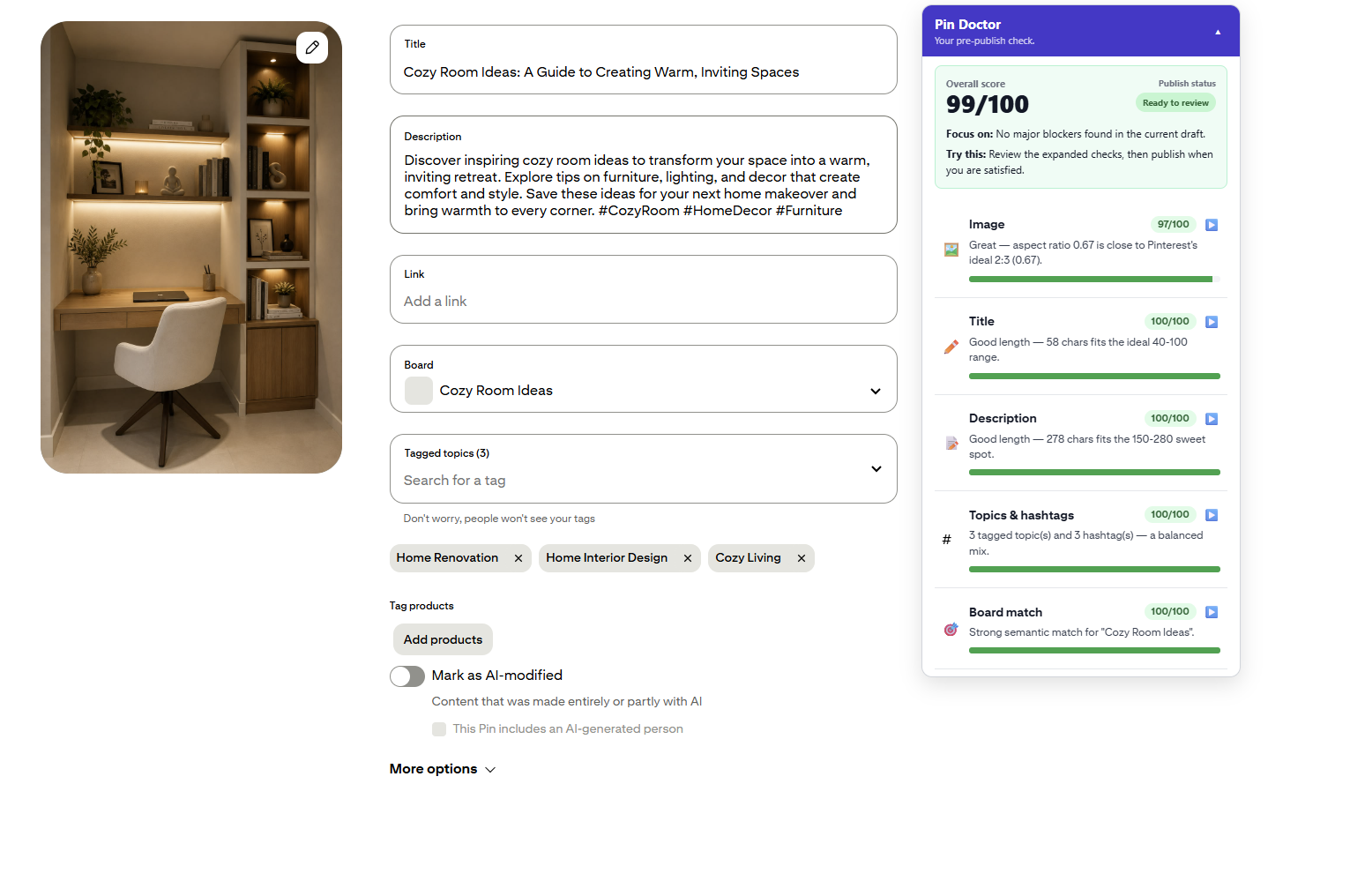
This is a real draft. The Pin is a cozy room idea (not a product, but the idea is the same). It has three tagged topics (Home Renovation, Home Interior Design and Cozy Living) and three hashtags in the description. Pin Doctor calls that “a balanced mix” and gives it 100 out of 100.
Start with what the Pin is really about
Before you add anything, describe the Pin in one sentence.
A vertical photo of a blue ceramic coffee mug with a hand-painted sun design, for people shopping for a small handmade gift.
That sentence tells you where to look. Topics around handmade ceramics, coffee mugs or gift ideas could fit. Home renovation, wedding décor and minimalist offices probably don’t, unless the Pin really shows those things.
This matters because it’s so easy to let tags drift. You add every related phrase you can think of, and the Pin ends up describing five different audiences. More words don’t mean more clarity.
A quick way to choose topics
Ask yourself three things:
- What can someone actually see in the image?
- What will they expect after they click?
- Which board is this going on?
If the image shows a printable wall calendar, “printable planner” might fit. If the link goes to a ceramic mug listing, it clearly doesn’t, even if you also sell stationery.
The board matters too. The same mug Pin on “Etsy Gift Ideas” says something different than it does on “Pottery Studio Inspiration.” Both could be fine. Just make sure the board backs up the idea you want the Pin to get across.
How many hashtags should you add?
There’s no magic number that makes a Pin rank. A small, relevant set is usually better than every variation of the topic.
For a handmade mug Pin, something like this would be reasonable:
#handmadeceramics#coffeecup#handmadegift
That tells you what the product is and who it’s for. A list like #love #beautiful #viral #trending #shopnow #home #gift #etsy #decor is a lot less useful. Some of those words may be true, but together they say nothing about this particular Pin. It also looks like it was written for a machine.
Write a clear title and description first. Then add hashtags only if they sharpen the topic.
What Pin Doctor actually checks
Here’s the expanded topics check from Pin Doctor.
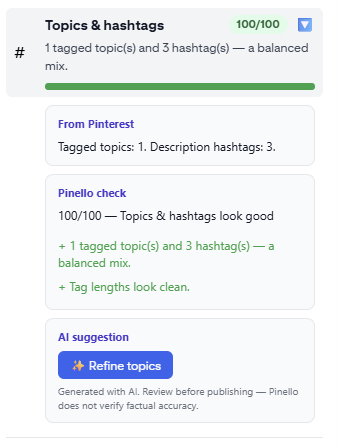
It has three parts. “From Pinterest” shows what’s on the draft in this capture: one tagged topic and three hashtags in the description. (It’s a different capture from the one above, so the topic count differs.) “Pinello check” gives a plain result (100 out of 100, “Topics & hashtags look good”) with short reasons, such as a balanced mix and clean tag lengths. And the AI suggestion section has a button called Refine topics.
That’s what it does. It looks at the setup of the metadata on your draft. It isn’t predicting anything.
It isn’t keyword research
A lot of Pinterest SEO tools promise more than they deliver, so let me be straight about this.
Pinello checks the metadata on your Pin and gives a signal about quality and completeness. It doesn’t do keyword-volume research, scrape other accounts, or tell you how many people search for a topic. There’s no hidden volume score behind the check.
You can still do your own research. Use Pinterest’s search suggestions, what you know about your product, and the words customers use in your reviews and messages. Then use the topics and hashtags fields to make your finished Pin consistent with what you learned.
And please don’t treat the Pinello score as Pinterest’s ranking score. It isn’t. It’s a pre-publish quality signal, not a prediction of reach, saves or clicks.
What if the check says unavailable?
Pinterest data can be partial. The page might still be loading, a field might not have settled, or a different kind of Pin might expose different fields. When Pinello can’t verify something, it says so instead of making up a result.
If that happens, here’s the manual version:
- Re-read the title.
- Check that the description names the actual subject.
- Confirm the board fits.
- Add only labels that clearly match.
- Open Pin Doctor again once the field has settled.
If the result changes after you edit, that tells you something about your current draft. It isn’t a promise about what Pinterest will do with it.
Using the copy-only suggestions
When you click Refine topics, Pinello makes a suggestion and copies it to your clipboard. You review it and paste it in yourself. It doesn’t type into Pinterest or publish for you.
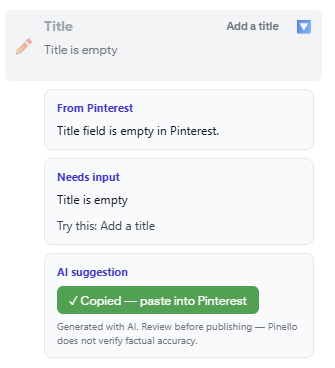
That screenshot shows the title check, but every suggestion works the same way. It’s copied, and the panel reminds you to review it first. It also says Pinello doesn’t verify factual accuracy, which is fair. You know your product better than any generic rewrite does.
So treat a suggestion as a way to get unstuck. Remove anything that doesn’t describe the image or the link accurately.
Putting it together: one Pin, start to finish
Say you’re posting that handmade mug. Here’s how the pieces could line up.
The title says what it is: “Hand-painted blue ceramic coffee mug.” The description adds a sentence or two about who it’s for and a couple of hashtags. The topics are things like pottery and coffee mugs. The board is “Coffee Lover Gifts.” And the image shows the mug clearly, not a cluttered shelf.
Every piece points at the same thing. That’s all consistency means here. Nobody has to guess what the Pin is about, and that includes Pinterest.
Common mistakes
Most metadata problems are boring. They’re also easy to catch:
- Reusing the same set on every Pin. A mug Pin and a wall calendar Pin shouldn’t share hashtags just because they’re from the same shop.
- Adding labels the image can’t support. If a viewer wouldn’t see the connection, it’s noise.
- Treating the field as a keyword dump. A long run of near-duplicate phrases reads like it was written for a machine.
- Skipping the check when the field looks empty. An empty or unavailable field deserves a second look.
None of this is dramatic. Pinterest rewards clear Pins, and clear metadata is part of that.
One habit that helps: change one thing, then check again. If you swap a topic and the result moves, you’ve learned what that field was doing. If you rewrite everything at once, you won’t know which edit mattered. It takes an extra minute and saves you from guessing.
A quick pre-publish check
Before you hit Publish, ask:
- Does the title say what the Pin is about?
- Does the description add something useful?
- Do the topics match the image and where it links?
- Are the hashtags specific enough to mean something?
- Does the board back up the same subject?
- Are any checks marked unavailable or partial?
If those line up, you probably don’t need more metadata. Clean and consistent beats crowded.
Check your next Pin before you publish
Topics and hashtags are just one part of a Pin. The image, title, description and board all need to work together. Pinello gives you a Pin Detail Score when you inspect Pins and a Pin Doctor with SEO checks while you prepare your own.
It’s free to install, and it never publishes anything for you. Try it on your next Pin and see whether it catches a weak field you’d have missed.
Use the result as a second opinion. Not an official Pinterest score. Not a reach forecast. Just a clearer way to catch the weak spot before you publish.