How to Block Ads on Pinterest (Free, 2026)
You open Pinterest to find one recipe or one living-room idea, and every fourth or fifth Pin is something you didn’t ask for. Promoted Pins, sponsored Pins, “shop this look” cards. If you’re using Pinterest for research, that noise adds up fast.
So can you block ads on Pinterest? Short answer: not with a Pinterest setting. Pinterest’s own help page says it plainly: you can hide individual ads and block advertisers, but “you can’t turn off ads completely”. On desktop Chrome, though, a browser extension can hide promoted Pins before you see them, and some do it for free.
I build one of those extensions, so let me be upfront about it. Pinello is a free Chrome extension that scores Pinterest pins across 5 dimensions — image, board fit, title, description, and hashtags — in real time. It also has a free Hide ads switch, and that’s the part this guide is about. I’ll cover Pinterest’s built-in controls first, because they’re free, official and work on your phone too.
Can you turn off ads on Pinterest?
No. Pinterest is funded by ads, and there’s no “ad-free” setting or paid ad-free plan. What it does give you is three smaller controls:
- Hide an ad. Tell Pinterest you don’t want to see that particular promoted Pin.
- Block an advertiser. Pinterest lets you block up to 1,000 advertisers’ profiles.
- Limit ad personalisation. You can limit the information Pinterest uses to pick your ads. That changes which ads you see, not how many.
None of these removes ads from the feed. They’re worth knowing anyway, especially on the mobile app, where extensions can’t help.
Method 1: Pinterest’s built-in ad controls (desktop and app)
These work anywhere you’re signed in to Pinterest.
Hide a single ad
- Find a Pin with a Promoted or Sponsored label.
- Click or tap the three-dot menu (…) on the Pin.
- Choose Hide Pin, then pick a reason if Pinterest asks.
Pinterest uses that feedback to choose your ads, so you’ll see that one less. You won’t see fewer ads overall.
Block an advertiser you keep seeing
- Tap the advertiser’s name on the promoted Pin to open their profile.
- Open the profile’s three-dot menu and choose Block.
This works well when one brand keeps following you around. With a 1,000-profile cap you won’t run out, but you’d be blocking for a long time to make a dent.
Limit how ads are personalised
On desktop, go to Settings → Privacy and data and look at the ad personalisation options. In the app, it’s under your profile → Settings → Privacy and data. Turning these off means Pinterest uses less of your activity to pick ads. You’ll still get ads, just less targeted ones.
Honest take: these controls are fine for the odd annoying brand. They don’t make the feed feel cleaner.
Method 2: Hide promoted Pins with a Chrome extension (free)
On a laptop or desktop, a Chrome extension can spot promoted Pins as the page loads and hide them. Here’s how it works with Pinello. Other Pinterest ad blockers follow similar steps, and I compare them in a separate article.
- Install Pinello from the Chrome Web Store. No account or card is needed for the free plan.
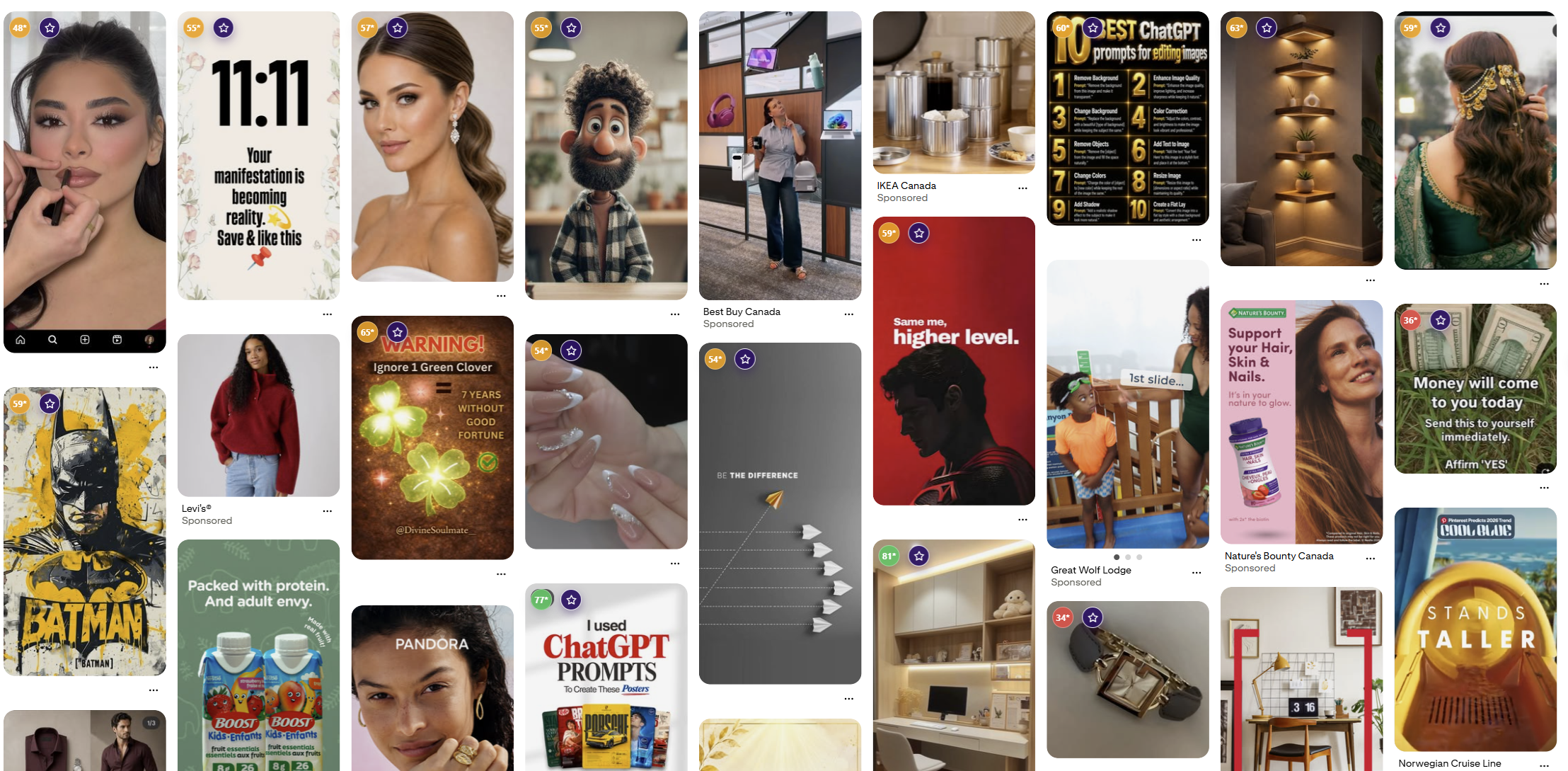
- Open Pinterest in Chrome and browse as usual. You’ll see small score badges on Pin cards (that’s the main thing Pinello does).
- Open the side panel. Click the Pinello icon in the Chrome toolbar. If you can’t see it, pin it from the puzzle-piece menu.
- Turn on Hide ads under Browse Controls.
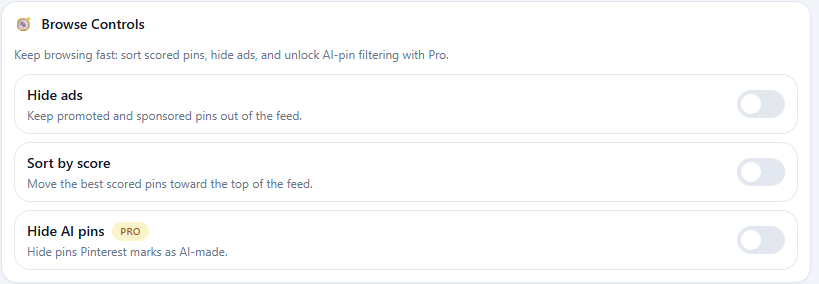
From then on, Pins that Pinterest marks as promoted or sponsored drop out of your feed as you scroll. It’s a switch, so you can flip it off if you ever want to see what’s being advertised. (Creators sometimes do, to see what competitors are paying to promote.)
A few things to know before you rely on it:
- It’s Pinterest-only. Pinello doesn’t block ads on other websites. If you want that, a general ad blocker is the right tool.
- It follows Pinterest’s own ad labels. If Pinterest redesigns how it shows ads, there can be a short gap before an update catches up. That’s true of every Pinterest ad blocker, not just this one.
- It’s free. Hide ads is on the Free plan. The Pro plan ($8.99/month or $79/year, 7-day trial) is about scoring limits, CSV export and hiding AI-labelled Pins. You don’t need it to hide ads.
Method 3: A general ad blocker
General ad blockers are built for banner ads and video ads around the web. Pinterest’s promoted Pins aren’t banners: they look like normal Pins, with a small label. Some general blockers catch them and some don’t, and that can change whenever Pinterest updates its site.
If you already run a general blocker, check your feed first. If promoted Pins are still showing up, a Pinterest-specific extension is the simpler fix.
What about the Pinterest app on iPhone and Android?
This is where people get stuck. You’ll see searches like “block ads on Pinterest app” and “Pinterest ad blocker iPhone” all the time, so here’s the straight answer:
- Chrome extensions don’t run inside the Pinterest app. Not Pinello, not any of them.
- On a phone, you’re limited to Pinterest’s own controls: hide ads, block advertisers, limit personalisation (Method 1).
- Modified “no-ads” versions of the app float around. I wouldn’t install them: you’d be signing in to your Pinterest account inside an app that isn’t from Pinterest.
If ads on mobile drive you mad, the most practical answer is to do your heavy browsing and saving on a laptop, where you can hide them.
Ads still showing? Quick troubleshooting
If you’ve turned on a Pinterest ad blocker and still see promoted Pins, work through this list before giving up on it:
- Reload the tab. If you installed the extension with Pinterest already open, refresh the page so it can start working.
- Check the switch is actually on. In Pinello it’s Hide ads under Browse Controls in the side panel. It starts off, so nothing is hidden until you turn it on.
- Make sure the extension can run on Pinterest. Click the puzzle-piece icon in Chrome, then the three dots next to Pinello, and set it to run on pinterest.com (not only when you click it).
- Look at what’s slipping through. Is it labelled Promoted or Sponsored? If not, it’s probably a regular Pin from a brand (a shop’s own Pin isn’t an ad unless someone paid to promote it). Shopping modules and “shop the look” cards aren’t always marked as ads either.
- Turn off other Pinterest extensions for a minute. Two extensions rewriting the same feed can trip each other up.
If labelled ads are still getting through after all that, Pinterest has probably changed its design again. Report it to the developer. For Pinello, that’s hello@amrita-labs.com, and a screenshot of the Pin helps a lot.
What about AI Pins?
A lot of people searching “Pinterest without ads” also want Pinterest without AI images. Pinterest added a setting for that. Go to Settings → Refine your recommendations → AI content and turn off Show AI content. Pinterest describes it as a way to reduce AI content, so you’ll see fewer AI Pins, not none.
Pinello Pro adds a Hide AI pins switch that hides every Pin carrying Pinterest’s AI label. It’s a Pro feature, so to be clear: if AI Pins are your only problem, try Pinterest’s free setting first.
Free vs Pro, so there are no surprises
| Pinello Free | Pinello Pro | |
|---|---|---|
| Hide ads (promoted and sponsored Pins) | ✅ | ✅ |
| Feed Score and Pin Detail Score | ✅ | ✅ |
| Pin Doctor checks | 20 / month | Unlimited |
| AI actions (copy-only suggestions, Board Match) | 5 / month | 200 / month fair use |
| Hide AI pins | — | ✅ |
| Feed sorting by score, CSV export | Basic score sort | Full feed sorting, CSV export |
| Price | $0 | $8.99/month or $79/year |
Quick answers
Is there a Pinterest Premium without ads? No. Pinterest doesn’t sell an ad-free plan.
Does hiding an ad on Pinterest reduce the number of ads? No. It tells Pinterest which ads you don’t like. Pinterest says it uses that feedback to make future ads more relevant.
Will hiding ads break Pinterest? No. Pinterest still loads normally. The extension hides the promoted Pins on your screen and doesn’t change your account.
Is it allowed? Hiding content in your own browser is a personal display choice. You’re not changing anything on Pinterest’s side.
The short version
- On the app: hide ads one by one, block the worst advertisers and limit ad personalisation. That’s all you’ve got.
- On desktop Chrome: turn on a Pinterest ad blocker and the promoted Pins are gone.
If you also make Pins, it’s nice when that blocker is in the same place as your Pin checks.
Get Pinello and hide Pinterest ads free. Hide ads is on the Free plan, with no account and no card. Pinterest is a trademark of Pinterest, Inc. Pinello is independent and not affiliated with Pinterest.