How to Hide AI Pins on Pinterest (Setting vs Extensions)
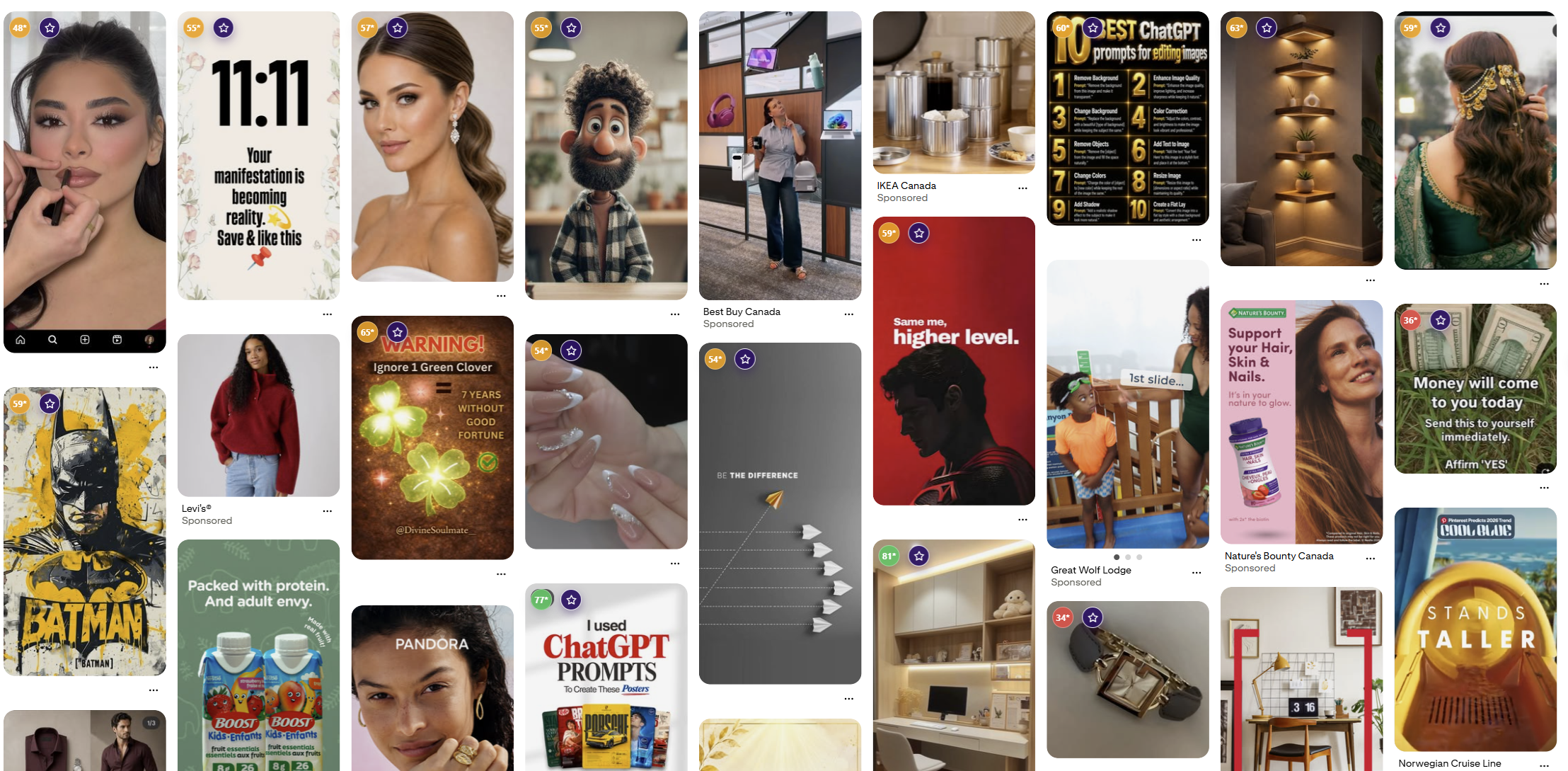
Search Pinterest for “cozy reading nook” or “short wolf cut” and you’ll find a growing share of Pins that never existed as real rooms or real haircuts. Some are lovely. Plenty are a problem if you were looking for something you can actually build, cook or book.
The good news: Pinterest finally gives you a setting for it. The less-good news: that setting reduces AI content. It doesn’t remove it. If you want those Pins gone, you’ll need a browser extension, and there are now about a dozen of them on the Chrome Web Store.
Full disclosure: I make one of them. Pinello is a free Chrome extension that scores Pinterest pins across 5 dimensions — image, board fit, title, description, and hashtags — in real time. Hiding AI Pins is one of its Pro switches. I’ll start with Pinterest’s own setting because it’s free and works everywhere, and I’ll point you to free extensions too.
Step 1: Turn off “Show AI content” in Pinterest settings
This is Pinterest’s official control, described on its Refine your recommendations help page.
On desktop
- Click the more-options icon at the bottom left of the Pinterest screen.
- Choose Refine your recommendations.
- Open the AI content tab. Some accounts still show it as GenAI interests.
- Turn off Show AI content to switch off all AI topics, or switch off individual topics under Manage AI content by topic.
In the app
- Tap your profile picture (bottom right), then the more-options icon (top right).
- Tap Refine your recommendations → AI content.
- Turn off Show AI content, or pick topics one by one.
There’s also a per-Pin option. On some image Pins, the three-dot menu lets you tell Pinterest to show less AI content in that category. Not every Pin has it.
What the setting doesn’t do
Pinterest’s help page calls it a way to “see fewer Gen AI Pins” and “reduce AI content”. So:
- It’s per category. It covers the topics Pinterest lists, such as home decor, beauty, fashion, food and drink and art. Outside those, you get the usual mix.
- It’s “fewer”, not “none”. AI Pins still show up, especially in search results.
- It only acts on what Pinterest recognises as AI. An AI image Pinterest hasn’t spotted looks like any other Pin.
- It doesn’t touch ads. Pinterest notes that changing recommendations won’t affect the ads in your home feed.
For a lot of people that’s enough. Try it for a week before installing anything.
Step 2: Hide labelled AI Pins with a Chrome extension
If you want AI Pins gone rather than reduced, a Chrome extension can hide every Pin that carries Pinterest’s AI label (Pinterest shows labels like “AI modified” on Pins it identifies as AI-made or AI-edited).
Here’s the list from the Chrome Web Store, as of 25 November 2026:
| Extension | Price | What it hides |
|---|---|---|
| Pinterest AI Content Filter | Free | Pins labelled “AI-generated” / “Created with AI”; on by default |
| PinSight – Pinterest AI Control | Free | AI Pins, hidden, blurred or labelled (labels by default) |
| No AI Pinterest | $9 once (unlocks a family of “No AI” extensions) | Pins Pinterest flags as AI generated or AI modified |
| Feed Cleaner for Pinterest | Ads free; Pro $2.99/mo, $19.99/yr or $39 lifetime for AI Pins and more | Ads, promoted and shopping Pins; AI Pins in Pro |
| Pinello | Hide ads free; Hide AI pins in Pro ($8.99/mo or $79/yr) | Ads (Free); AI-labelled Pins (Pro); plus Pin scoring |
All of them work the same basic way: they look for Pinterest’s AI label and hide that Pin. None of them can see whether an image is AI-made. If Pinterest hasn’t labelled it, it stays.
Which one should you pick?
- You just want AI Pins gone, for free: start with Pinterest AI Content Filter or PinSight. Both are free and single-purpose.
- You hate AI features across lots of sites: No AI Pinterest’s one-off $9 covers its sister extensions too.
- You want ads and AI gone in one tool: Feed Cleaner hides ads for free and puts AI hiding in a cheap Pro tier.
- You create Pins yourself: that’s who Pinello is for.
I’d rather you pick the right tool than install mine for the wrong reason.
How Pinello’s Hide AI pins switch works
Pinello is mainly a Pin checker for creators. It shows a Feed Score on Pin cards, a fuller score when you open a Pin, and a Pin Doctor beside the Create Pin form.
The feed controls live in the side panel:
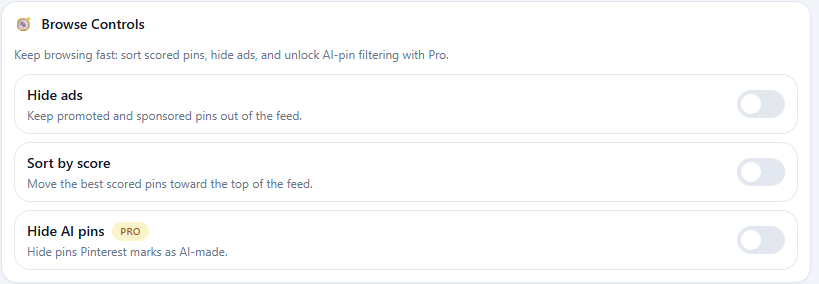
- Install Pinello and open Pinterest in Chrome.
- Click the Pinello toolbar icon to open the side panel.
- Under Browse Controls, turn on Hide AI pins (Pro, with a 7-day free trial).
It hides Pins that Pinterest labels as AI, such as “AI modified”. Like every tool in the table, it won’t catch AI images that Pinterest hasn’t labelled.
The Hide ads switch right above it is free. If promoted Pins bother you as much as AI ones, turn that on too.
Why this matters if you make Pins
If you’re a creator, AI Pins aren’t just clutter. They’re also competition for the same searches. When you research what’s working in your niche, it helps to look at real, buildable, cookable Pins rather than generated ones. That’s the angle that made me add the switch to a creator tool, rather than build yet another standalone filter.
And if you use AI to edit your own images? Pinterest may label your Pin “AI modified”, and anyone running one of these filters won’t see it. It’s something to weigh up before you heavily edit a hero image.
How to spot an AI Pin that isn’t labelled
Since every filter depends on labels, it helps to know the signs yourself. None of these is proof on its own, but two or three together usually are:
- The link goes nowhere useful. Real recipe and DIY Pins usually link to a blog post with steps. AI Pins often link to a thin page full of ads, or nothing at all.
- The details don’t add up. Look at hands, text on packaging, shelves that bend, lamps with no cord, or a kitchen where the cabinets don’t line up.
- It’s too perfect. Flawless lighting, glossy textures and a “dreamy” look across a whole board are a common tell.
- The account posts hundreds of similar images. Open the profile. A real creator’s Pins usually look like they came from different shoots.
- Comments ask “where is this?” or “recipe?” and get no answer.
When you find one, use the three-dot menu to tell Pinterest you want less AI in that category, if the option is there. That feedback goes back to Pinterest, which a browser extension can’t do for you.
Quick answers
Can you completely turn off AI on Pinterest? Not with Pinterest’s settings. Show AI content reduces it. An extension can hide labelled AI Pins on desktop Chrome.
Does any extension work on the Pinterest app? No. Chrome extensions only run in desktop Chrome, not in the iPhone or Android app. On mobile, use the Show AI content setting.
Why do I still see AI Pins with an extension on? The Pin probably has no AI label. Extensions that rely on labels (which is all the honest ones) can’t hide what Pinterest hasn’t marked.
Does hiding AI Pins change my recommendations? Hiding Pins in your browser with Pinello doesn’t send anything to Pinterest. The Show AI content setting does tell Pinterest what you want, so use both if you want the strongest effect.
The short version
- Turn off Show AI content in Pinterest first. It’s free and works on the app.
- On a computer, add an extension if “fewer” isn’t enough. Free ones exist.
If you make Pins and want ad hiding, AI hiding and Pin checks in one side panel, try Pinello. Hide ads is free, and Hide AI pins is part of Pro.
Prices are from each Chrome Web Store listing on 25 November 2026. Pinterest is a trademark of Pinterest, Inc. Pinello is independent and not affiliated with Pinterest.